Security
How Tally protects you
Tally keeps your two-factor accounts in an encrypted vault on your phone, opened only by you. Here’s how that works, in plain language first and in detail after, along with what no app on a phone can promise.
The short version
Your accounts are encrypted and stored only on your phone.
The vault opens only after Android confirms your fingerprint or screen lock.
The app has no internet access, no accounts and no analytics.
Codes are covered whenever you leave Tally, and screenshots are blocked unless you allow them.
Tally locks itself when you leave it, and when it sits open untouched.
Backups are encrypted with a password that only you know.
Where your accounts live
Every account you add — the service name, your account name and the secret setup key that produces its codes — is kept in one vault. Tally encrypts the whole vault together with AES-256-GCM, an authenticated cipher: if the stored file is changed or damaged, Tally refuses to open it rather than reading bad data.
The encrypted vault sits in Tally’s private app storage, which other apps can’t read, and Tally tells Android to leave it out of automatic cloud backups and device-to-device transfers. Decrypted accounts exist only in Tally’s memory while it’s unlocked; they’re never written to storage unencrypted. Working out a code doesn’t write anything at all.
How the vault opens
The key that decrypts your vault is itself encrypted, by a key held in the Android Keystore. That Keystore key can’t be copied out of the phone, and Android lets Tally use it only for a few seconds after you confirm it’s you. On phones with dedicated security hardware, Tally asks Android to keep the key there.
- YouFingerprint or screen lock
Android shows its own prompt. Tally never sees your fingerprint or PIN.
- Android KeystoreReleases its key
A key that can’t be exported, usable for a few seconds after you confirm.
- Vault keyUnwrapped in memory
The Keystore key decrypts the vault’s own key.
- Your codesVault decrypted
Tally reads your accounts and shows codes until it locks again.
Your screen lock opens Tally too
Android accepts your phone’s PIN, pattern or password as well as your fingerprint (or another biometric Android rates as strong), so anyone who knows your screen lock can open Tally. Keep it private and hard to guess.
Always starts locked
After a restart, or whenever Android closes the app, Tally opens locked and asks again. If you remove your phone’s screen lock, Android may permanently disable the Keystore key, and the vault can’t be opened any more. Make a fresh backup before changing your phone’s security settings.
When Tally locks
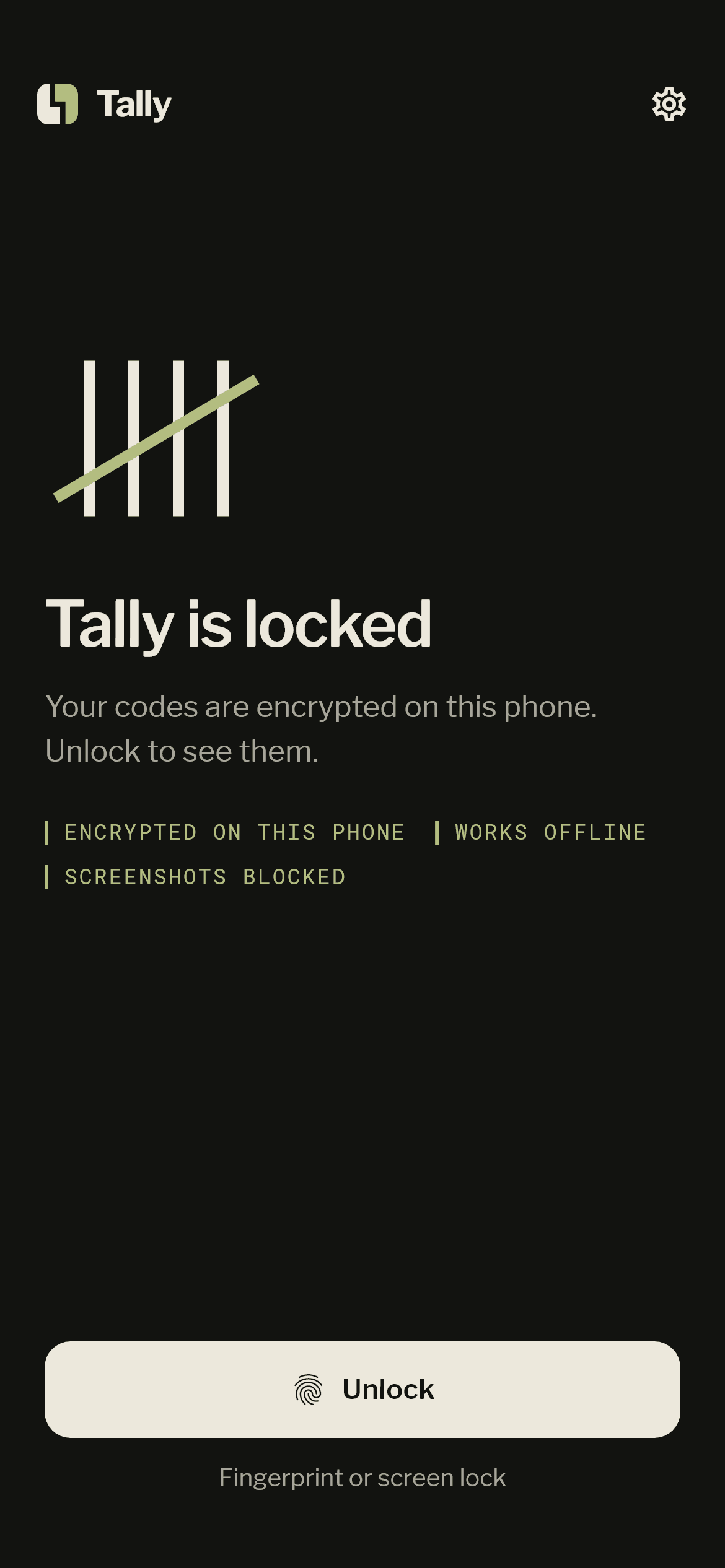
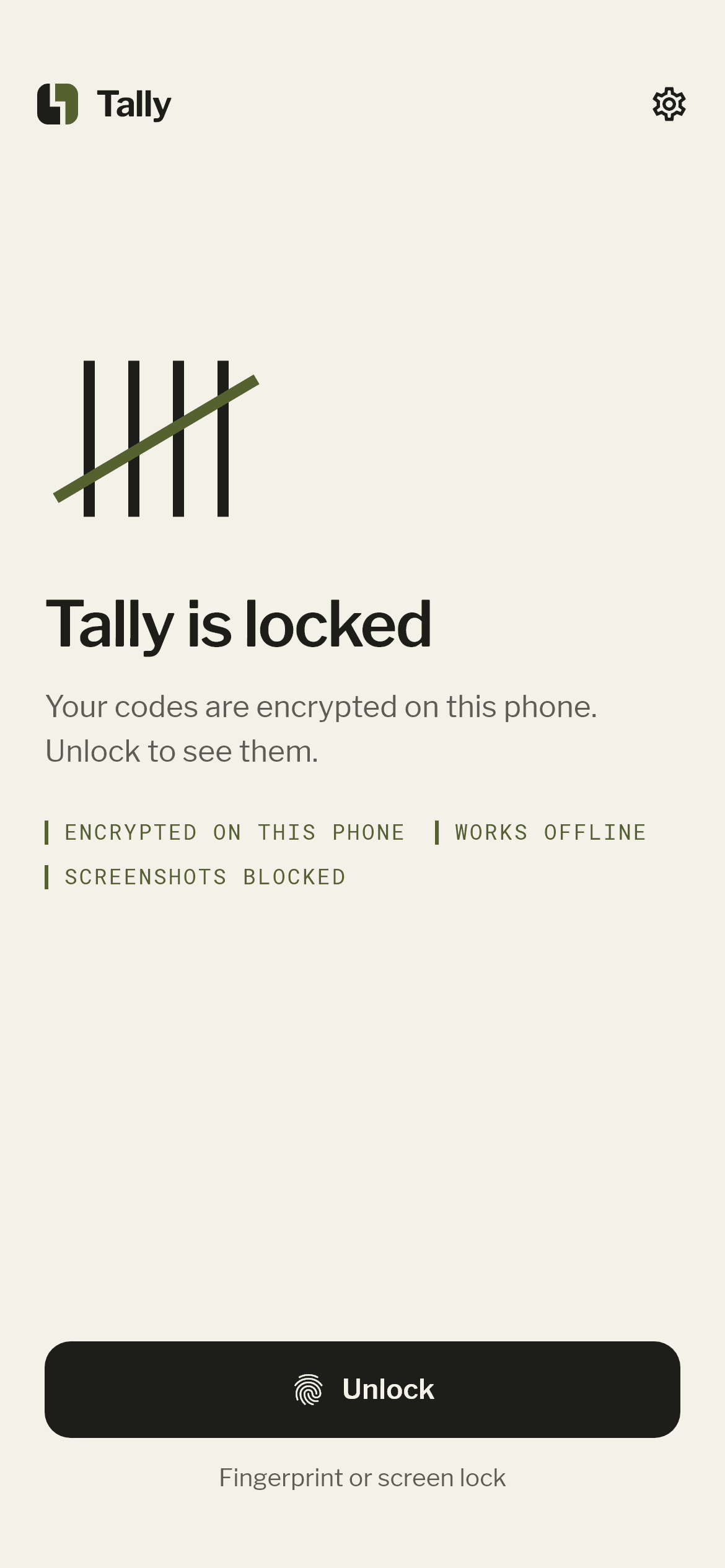
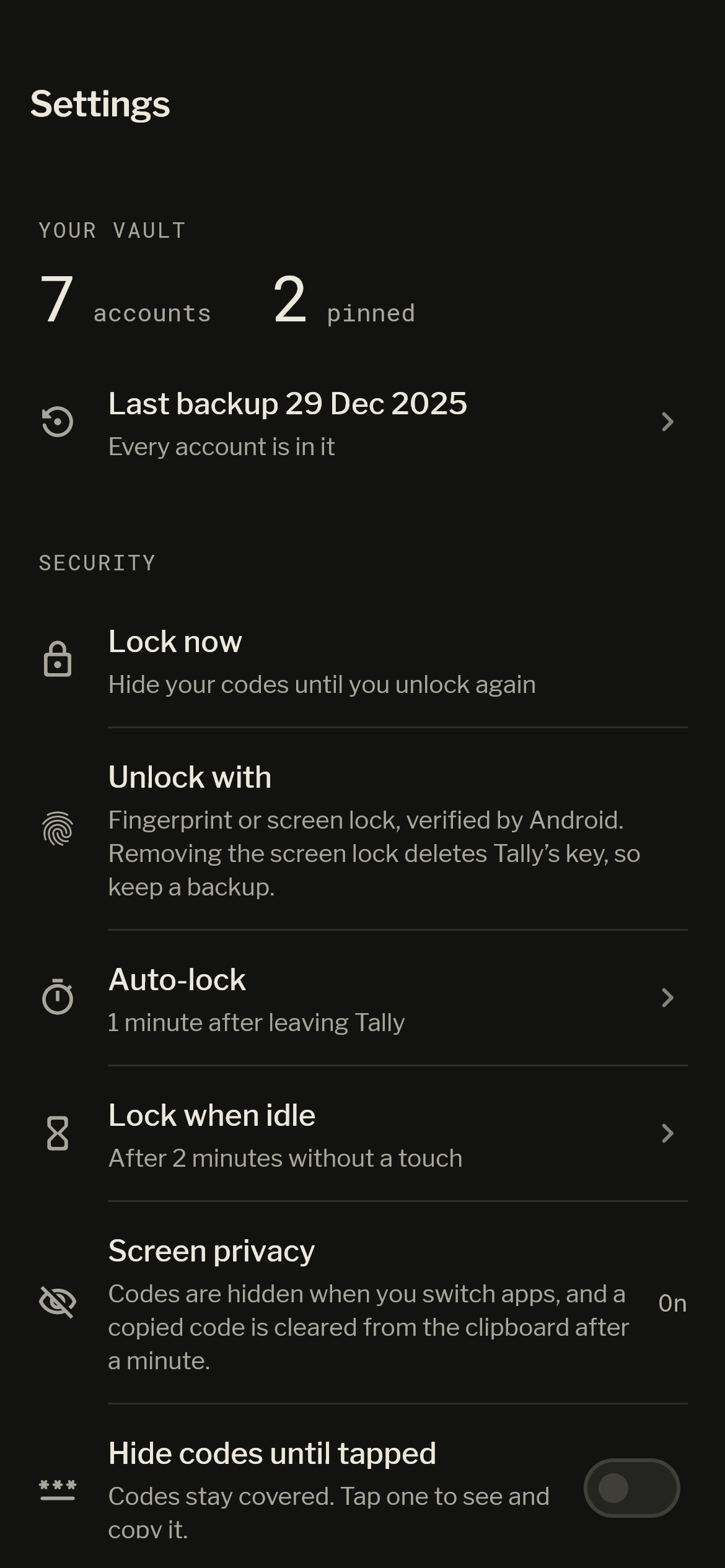
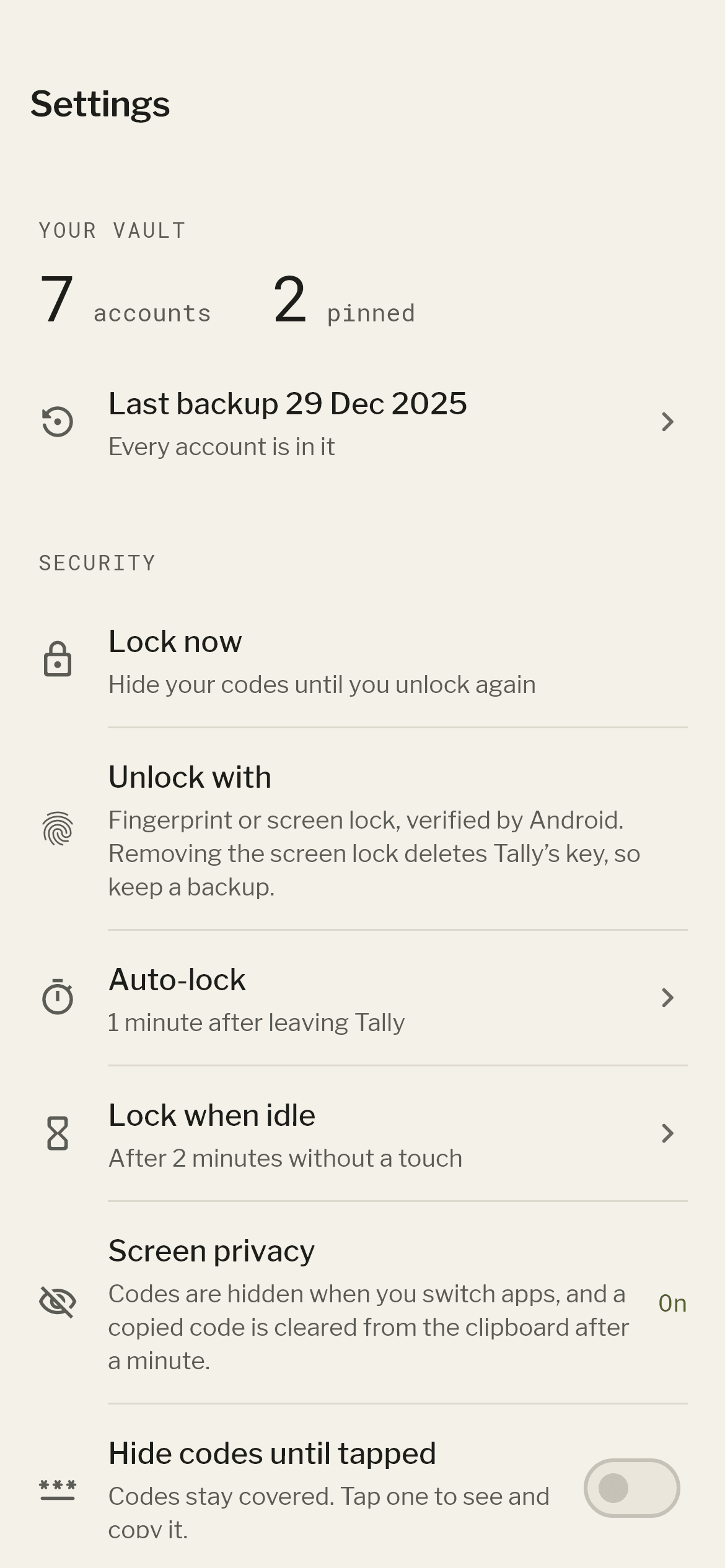
The moment Tally leaves the screen — you switch apps, open recent apps or pull down notifications — your codes are covered, and Tally’s preview in recent apps is hidden. Screenshots and screen recordings of Tally are blocked. You can allow them in Settings after confirming with your fingerprint or screen lock; they’re blocked again as soon as Tally locks. You can also keep codes hidden until you tap them.
Tally then locks after the time you choose in Settings: immediately, or after 30 seconds, 1 minute (the default) or 5 minutes away. It always locks straight away when your phone’s screen locks, and you can lock it yourself at any time from the lock button on the Codes screen.
When it locks, Tally lets go of the decrypted accounts and keys it was holding, and needs your fingerprint or screen lock again.
Adding accounts
The camera runs only on the scanner screen and stops when you leave it. Each frame is decoded on the phone by a decoder bundled with Tally; frames aren’t saved, and the setup details aren’t uploaded or logged. Before anything is saved, Tally shows you what it read so you can confirm it.
Android asks for camera permission the first time you scan. You can decline and type the setup key instead.
When you tap a code, only its digits are copied, and Tally marks the copy as sensitive so Android 13 and later keep it out of clipboard previews. The copy is cleared a minute later, or when you next open Tally.
No network access
The Android release of Tally doesn’t include Android’s internet permission, so the app has no way to make network connections of its own. There’s no Tally server or account, and no analytics, advertising or crash-reporting service in the app. Service logos are bundled with Tally, not downloaded.
Since 1.4.1, Tally contains no Google Play library either. Updates come through the Play Store’s own updates, like any other app.
Encrypted backups
A backup is one .tally file that you create and keep. Your accounts are encrypted inside it with AES-256-GCM, under a key that only your backup password can unlock.
The password is strengthened with Argon2id, a deliberately slow, memory-hungry function, so each guess at it is expensive. Anyone who gets the file can still try guessing, which is why Tally asks for at least 15 characters — or generates six random words on your phone for you.
Tally asks for your fingerprint or screen lock each time you make a backup, and Android’s own save screen lets you choose where the file goes without Tally getting access to your storage. A backup is a snapshot: accounts you add afterwards aren’t in it until you make a new one.
Restoring works when Tally is set up fresh, on a new phone or after erasing, and never replaces accounts already in Tally. The restored vault is then protected by that phone’s own Keystore.
Tally never stores or sends your backup password, so it can’t be reset or recovered. Without it, a backup can’t be opened.
Moving to a new phone
Move to a new phone sends every account screen to screen, with no network, file or password. The new phone shows a QR code holding a one-time public key. The old phone scans it, asks for your fingerprint or screen lock, then encrypts your accounts for that key and shows them as a loop of QR codes for the new phone to scan.
Only the new phone, which keeps the matching private key in memory, can open them, so a photo or recording of the codes is useless. Both phones show a short check code that matches only if the old phone scanned the right new phone. The keys exist only while the transfer screens are open.
Erasing the vault
Settings › Erase vault permanently removes every account from Tally on this phone after you confirm with your fingerprint or screen lock. It also destroys the Keystore key, so the old encrypted data can’t be opened again. Backups you’ve made, and copies on other devices, aren’t affected.
What Tally can’t protect against
Encryption protects a locked vault. It can’t make an unlocked or compromised phone safe. Tally can’t protect your codes from:
- someone who knows your phone’s PIN, pattern or password;
- a phone that’s rooted, running modified system software or infected with malware, including apps given accessibility access that can read the screen;
- someone watching or filming your screen while Tally is open;
- a code typed into a fake sign-in page, which an attacker can use straight away;
- losing your phone without a backup, or forgetting your backup password.
This page describes how Tally is designed and built. It isn’t a certification or an independent audit.
Technical details
For readers who want the specifics.
| Vault encryption | AES-256-GCM over the whole vault, with a fresh random 96-bit nonce for every save and a 128-bit authentication tag |
|---|---|
| Vault key | Random 256-bit key; encryption keys derived from it with HKDF-SHA256 |
| Device key | Android Keystore AES-256-GCM key, non-exportable, usable for 10 seconds after strong biometric or screen-lock authentication; StrongBox requested where the phone offers it |
| Backup password | Argon2id (v1.3): 64 MiB of memory, 3 passes, 4 lanes, random 16-byte salt |
| Backup file | One .tally file: accounts encrypted with AES-256-GCM; vault key wrapped by the password-derived key |
| Phone transfer | One-time X25519 key pairs; key derived with HKDF-SHA256; accounts encrypted once with AES-256-GCM and shown as Base45 QR codes; a 20-bit check code on both phones |
| Storage | App-private, no-backup directory; atomic replacement on every save; Android backup and device transfer opted out |
| Android permissions | Camera (scanner only) and biometric prompt. No internet, storage, location or microphone; QR images come through Android’s photo picker, which needs no permission |
| Codes | TOTP (RFC 6238): SHA-1, SHA-256 or SHA-512; 6 to 8 digits; any period |
| Minimum Android | Android 11 (API level 30) |
Reporting a problem
If you think you’ve found a security problem in Tally, please report it privately to mohammadhajeer.dev@
For everyday questions, see Support.